

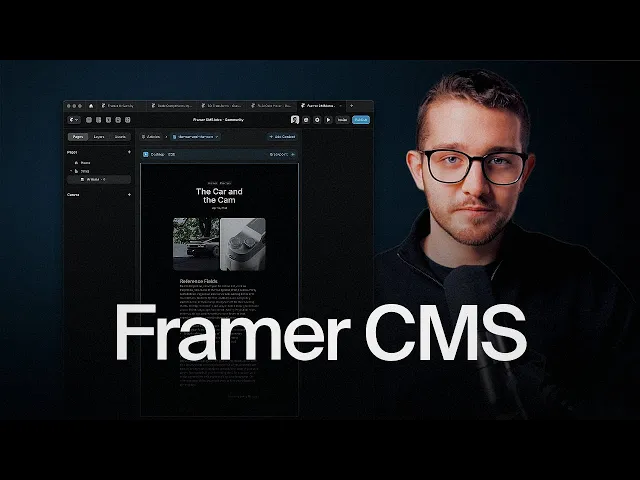
⚠️ Changes you make on a CMS page will apply to all pages using that CMS. If you delete an element here, it will be deleted on every other CMS item too.
Add content
If you need to include extra content, such as adding a subheading to your post, follow these steps:
1. Add a field
Open the CMS panel.
Select your CMS Collection.
Click Edit Fields.
Click the + icon and choose a field type.
2. Fill out the new field for each CMS
After the field is added, open your CMS items and enter the content for the new field.
3. Insert it in your page
Return to your main workspace.
At the top-left bar, select Insert.
Under CMS, choose Fields, then select your new field.
Drag it to your desired location.
Style it as needed.
Show an element only when you've set one
Sometimes you only want an element to show in specific posts and be hidden everywhere else.
To show a field only under certain conditions (for example, showing an image only when you’ve set one), use conditional visibility:
Select the element.
Look at the right panel for the Visible field.
Click the + icon and choose Set Variable.
Set the condition.
Advanced customization
Complete guide to CMS